Showing posts with label Jquery. Show all posts

Thursday, September 14, 2017

Grouping SharePoint List Items using Jquery/REST/JSON

In this post, I will share requirement where I need to retrieve SharePoint list data that contains following list items.


Below is what I need to from SharePoint list:

1. I need to group below list based on the Title.
2. I need to display the grouped results with sum of Number column.

The end result should be as below:

Name:One- Total 10
Name:Two- Total 7
Name:Three- Total 6

Main issue here is the SharePoint REST API doesn't support grouping. The above requirement can be achieve by grouping the JSON response that is obtained from the REST query. Below is the complete code that does grouping.


Tuesday, September 12, 2017

Branding SharePoint 2016 Suite bar using SharePoint Jquery/REST API

In this post, I will sharing my recent experience of customizing SharePoint 2016 suite bar branding. As we know SharePoint out of box suite bar looks like below with following elements.


Following tasks can be accomplished on the SharePoint suite bar.

1. We can replace the default SharePoint text with either your company name or company logo. This can be done by accessing SharePoint CSS class ''o365cs-nav-leftAlign" and "o365cs-nav-brandingText" using Jquery.

2. In the center section of the suite bar, we can add text or icon using css class "o365cs-nav-centerAlign".

3. In the right section, I will adding suite bar links using SharePoint css class 'o365cs-nav-rightAlign'.

This post will majorly discuss branding the left and right sections of the SharePoint 2016 suite bar.

The final output will be as follows:

1. On the left side of the suite bar, I will be placing logo using SharePoint Jquery/REST.
2. On the right side of the suite bar, I will be placing suite bar links and when clicked on these suite bar links, I will be displaying additional sub menu links.


Development:

I had created entire solution as farm solution and once I have the wsp I had used the wsp in SharePoint HTML master page so that I can see the suite bar branding elements in every page of my custom master page.

Below is the final structure of my the project:


In the visual studio project, I had created visual webpart, The only purpose of the visual webpart is that it holds all the javascript and css customization. Here is the code for visual webpart designer page.


SuiteBarCustom.js: this file will be generating all the HTML elements for right and left section of the suite bar for adding the logo and adding suite links. Below is the code.


SuiteBarCustom.css


Source: I had used SharePoint list to retrieve the links for suite links in SharePoint suite bar.

Deployment: Build the solution and use the wsp generated from the solution to add it onto custom master page. Below snippet is generated from design manager and used in master page.


The above post showed how I  had developed and deployed custom suite bar links.

Friday, January 6, 2017

Document Library Image Slider

Document slider based on SharePoint 2013 Document library

Below custom Jquery creates an image slider based on the documents. Although, I had used a constant image it can changed based on requirement. The slides contains documents present in document library and also folders.


Source code: Link

Output: Use above Js file in content editor web part and it should look like below. When clicked on the image corresponding document can be accessed.


Thursday, December 29, 2016

SharePoint 2013 Quick Launch Customization

One of recent requirement I am working is creating custom quick launch menu on SharePoint 2013 that would have an accordion view plus searchable text box that would essentially search the contents of quick launch menu. The end result would be as you enter each key the results gets refined.

Below is the snapshot of final quick launch menu. As you can see in the image on default page load all the menus are collapsed and while in the 2nd image  user enters text in the search box(for example user types 'r') the results get expanded and displays the appropriate results that has character 'r'.Similarly user types 're' results get further simplified.

Search is implemented using Jquery and it displays results from child menus.


Accordion view of SharePoint 2013 quick launch:

For creating the accordion view, I had used below reference post from max.

http://yakovenkomax.com/converting-sharepoint-2013-quick-launch-to-accordion-menu/

Navigation is based on out of the site settings navigation. Although term store driven navigation can also be used.

Setting up the search on quick launch accordion menu:

Using custom jquery code, I had injected the text box appended it to the header section of the page.

Below is the complete custom Jquery code with the comments. Some portion of below code also contains the code for renaming the suitebar title of the SharePoint page.


Thursday, October 6, 2016

REST operations using SharePoint Hosted Apps

In the following post I will be showing how I had created various REST operations on SharePoint list by using SharePoint hosted addins.

Post covers following rest operations in SharePoint App web:

  • Read lists 
  • Read list Items
  • Read list Items using paging
  • Read list Fields
  • Create list
  • Create list Item
  • Update list Item
  • Delete list
  • Delete list Item
  • Create new list and new list item
  • Add list field

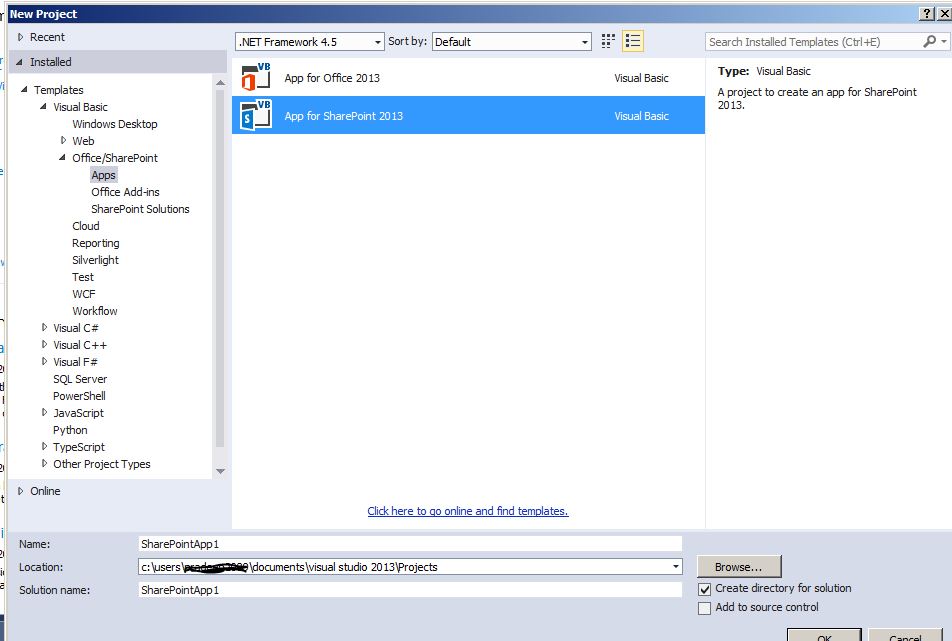
Using Visual Studio, I had created new project then select the App for SharePoint 2013 as template.


In the next window, In the hosting type I had selected SharePoint Hosted App.


After the project is created, Project structure looks like below. There are several parts in the projects such as Pages, Scripts, List Instance, Images.


I had created list called 'TestData' that would contain player information,

In the Pages section I had added CRUD.aspx. It is the main page for the application.

In the Scripts folder I had various javascript files such as app.js, crud.js, ListManager.js, ListItemManager.js.

CRUD.aspx - The file contains DIV that would display the results of various operations and also there are various buttons for CRUD operations for performming respective task. The references for below js libraries are added in PlaceHolderAdditionalPageHead  section.

CRUD.js - The file contains logic for REST CRUD operations.

ListManager.js - The file contains logic to fetch or create list.

ListItemManager.js -  The file contains logic for updating, creating list item.

App.js - The files contains logic to log and display the error to div. CRUD.aspx

Creating SharePoint List 'TestData'

Right on project and then add new item to create a new list.


I had created new columns to the 'TestData' list and added sample data. Below is element.xml file for SharePoint list.


In CRUD.aspx I had added several button controls for various REST operations and also DIV to display the result of button click operation.


In CRUD.js I am creating/using namespace 'JSREST' as not to pollute the global namespace.When the page is fully loaded I am attaching button click event handlers and calling respective function.


Reading SharePoint lists using REST in SharePoint Hosted Apps:

On read button click, readlists() function is executed.


CRUD.js


ListManager.js


Result:


Reading SharePoint list items using REST in SharePoint Hosted Apps: 

On read list items button click _readListItems function is executed in CRUD.js


ListItemManager.js


Result:


Read list item paged:

On Read items paged button click _readListItemsPaged() function will be invoked.


Result:
1st result page


2nd result page


Read all list fields:


_readListFields() is executed when I had clicked on Read list fields button control.

CRUD.js


ListManager.js


Result:


Create SharePoint list:


On Create List button click, _createList() function is executed in crud.js

crud.js


ListManager.js


Result:


Create List Item:

_createListItem will be executed on Create List Item button click


Result:


Update SharePoint List Item:

_updateListItem() is called when update List Item is clicked

crud.js


 ListItemManager.js


Result:


Delete SharePoint List


_deleteList() is executed when delete list is clicked.


Result


Delete SharePoint list item


_deleteListItem is executed when delete list item is clicked

crud.js


listItemManager.js


Result:


Create List with item:


_createListwithNewItem() is executed when create list with item is executed.

crud.js


ListManager.js


ListItemManager.js


Result


Add SharePoint List Field


_addListField is executed when Add field is clicked.

crud.js


listManager.js


Result


App.js


Complete Source Code: Link